
linden.md
Linden is your personal knowledge tree: a private home for your notes, blog, and tasks, plain Markdown you own, on every device, open to the AI you choose.
Why linden.md
linden.md comes out of nearly thirty years of note-keeping and a long line of tools that each got something right and something wrong. The full story, and how the AI age changed what a second brain has to be, is on its own page: Why I built linden.md. For the tour of what it all adds up to, see everything linden.md can do.
What it is
- A home for notes, tasks, and a blog, written in Markdown.
- Backed by a daemon. Run it on hardware you own, or let Linden Cloud host it for you. Either way your library lives in its own SQLite database, with full-text and vector search for fast, semantic recall.
- Self-hosting without the headache. The daemon discovers your devices and traverses your home NAT on its own, so a machine behind your router syncs encrypted-in-transit to your phone and laptop anywhere in the world.
- Native apps for iPhone, iPad, Mac, desktop, and the web, in real-time sync and fully usable offline.
- Search that reads your files too. Keyword and semantic search across your notes, with text pulled out of your PDFs and images (OCR) so attachments are findable, not just filenames.
- A private inbox address. Every account gets a
you@in.linden.mdmailbox; email or forward anything to it and it lands as an Inbox note, attachments and all. - Automated backups. Point the daemon at your own S3 or Backblaze B2 bucket for continuous, encrypted-in-transit backup, and download a full backup any time.
- Publishing for the posts you choose, as a blog at your own address, with a timeline and tag pages readers can browse.
- Open to your AI agents over MCP, with scoped, revocable access that you control.
- Portable. Export your whole library to Markdown whenever you want, and move between self-hosting and Linden Cloud in either direction.
What it's not
- Not stuck on someone else's server. Self-host it on hardware you own, or run it on Linden Cloud. Same app, same exportable notes, and you can move between the two whenever you like.
- Not locked to one device or one AI vendor. Every platform, and the agent of your choosing.
- Not a black box. Your content is Markdown; export the entire library any time.
- Not another thing to babysit. The daemon updates itself, traverses NAT, and keeps your devices encrypted and in sync on its own.
How it compares
Each of these is a good tool. linden.md borrows what they do well and drops what got in the way.
| Tool | What it nails | What linden.md adds |
|---|---|---|
| Evernote | Capture anywhere, always synced | A library you self-host, with built-in semantic and full-text search |
| Obsidian | Local Markdown, fast and flexible | Sync, publishing, native apps, and agent access built in, not add-ons |
| Markdown + Git | Total control and portability | That control with a real editor, mobile apps, and one-tap publish |
| Bear | A beautiful writing experience | The same polish, plus every platform, self-hosting, and a direct line to your AI |
Honestly, I encourage you to try all of these, and any others, until you find the one that fits the way you think. linden.md is the one that fits me. Give it a try too.
Good Markdown tools on Mac
A far-from-exhaustive list of editors and second brains worth your time: iA Writer, Ulysses, Bear, Obsidian, Typora, MarkText, Zettlr, Logseq, Joplin, NotePlan, Craft, Drafts, Standard Notes, Evernote, MacDown, Marked 2, and plain Markdown in a Git repo.
Get the apps
Start here. Grab the app for your devices, then install the daemon below to give it a home to sync with. Linden is native on iPhone, iPad, Mac, and Windows. Android is on the way. On Linux, run the daemon and use the web app.
Prefer the browser? The web app and your public blog work at your own linden.md address once your daemon is paired.
Install the daemon
One command sets up the daemon, starts it at login, and keeps it updated.
macOS and Linux
curl -fsSL https://linden.md/install.sh | shWindows
irm https://linden.md/install.ps1 | iexThe installer drops the linden binary in ~/.local/bin (on Windows, %LOCALAPPDATA%\Programs\Linden), adds it to your PATH, and registers a login-start service. Your data lives in ~/.linden.
Connect an app
Once it is running, pair a device:
linden pairThis prints a QR code. In the app, open Settings › Scan to pair and point your camera at it. The app and daemon are now linked.
The daemon
The daemon is the heart of linden.md. It runs quietly on your computer and:
- Stores every note, task, tag, and file in a single folder (
~/.linden). - Serves your public blog at your own address.
- Answers your apps and AI agents over a secure, token-protected connection.
- Updates itself in the background, or on demand with
linden update.
Because it is just a folder of files on your machine, you can back it up, move it, or walk away at any time. Nothing is locked in.
The gateway
Your daemon lives behind your home or office network, so the gateway (which we run at linden.md) gives it a stable public address and a way for your devices to reach it from anywhere.
| The gateway provides | The gateway does not |
|---|---|
A public address for your blog (you.linden.md) and optional custom domains.A real-time relay so your phone, laptop, and the web app reach your daemon from anywhere. Hosting for app updates and this site. |
Store your notes, tasks, or files. It is a blind relay. Read your content. Traffic passes straight through to your daemon. Get in the way when offline. Your apps keep working locally and sync when the daemon returns. |
The apps
One library, the same on every screen. Everything syncs in real time and works offline; edits made anywhere show up everywhere once your devices reconnect.
- iPhone. A fast editor with photos and video inline, tags, tasks, and Home Screen shortcuts.
- iPad. The same app, roomier, with a side-by-side layout for browsing and writing at once.
- Mac and Windows. A three-pane app. Pair it to a daemon you run (
install.sh/install.ps1) or to Linden Cloud. - Web. Your library in any browser, plus your public blog for readers.
AI agents
Every Linden account is an MCP server. The connection URL is https://you.linden.md/mcp (your own address; the app shows it under Settings › Connect an agent), served over plain streamable HTTP so it works with any MCP client.
The fastest way to hand Linden to an agent that can fetch a URL: copy a one-time link from the app (Settings › Connect an agent) and paste it into the chat. The page at https://you.linden.md/agent.md tells the agent how to connect. If the link includes a pair code, the agent claims a key itself (one use, one hour). Machine-readable twin: https://you.linden.md/.well-known/mcp.json.
Agents also sign in two other ways. With OAuth, the agent asks to connect on its own, a short match code appears, and you approve it in the Linden app (Settings › Connect an agent). With a bearer token, you mint a key under Settings › AI agents (or linden token create <name> write on a self-hosted daemon) and give it to the agent. Either way, each connection is scoped to read-only, edit, or full access, and you can revoke any of them at any time. Per-client steps:
Claude
claude.ai and Claude Desktop: open Settings › Connectors › Add custom connector, paste https://you.linden.md/mcp, and connect. When the match code appears, approve it in the Linden app.
Claude Code:
claude mcp add --transport http linden https://you.linden.md/mcpThen run /mcp inside Claude Code to authenticate (the same in-app approval). Prefer a plain key? Mint a token and pass it as a header instead:
claude mcp add --transport http linden https://you.linden.md/mcp \
  --header "Authorization: Bearer <token>"
ChatGPT
Turn on developer mode under Settings › Apps & Connectors › Advanced settings, then add an MCP server: name it Linden, use the same https://you.linden.md/mcp URL, and choose OAuth. Approve the match code in the Linden app.
Once connected, regular chat and deep research use Linden's search and fetch tools automatically. One caveat: full tool use in developer mode (creating and editing notes) requires ChatGPT Business or Enterprise; on Plus and Pro, developer-mode connectors are read-only.
Gemini CLI
The Gemini CLI (and the Gemini API's MCP support) connects with a bearer token. Mint one under Settings › AI agents, then add Linden to ~/.gemini/settings.json:
{
  "mcpServers": {
    "linden": {
      "httpUrl": "https://you.linden.md/mcp",
      "headers": { "Authorization": "Bearer <token>" }
    }
  }
}
Note: the consumer Gemini app cannot add user MCP servers (Enterprise only), so this is for the CLI and the API.
Grok
On grok.com, open Settings › Connectors, add a connector with https://you.linden.md/mcp, and finish the OAuth flow by approving the match code in the Linden app. (The xAI API takes a plain bearer token instead.)
Cursor & VS Code
In the Linden app, open Settings › Connect an agent and tap Cursor or VS Code: it deep-links into the editor with Linden pre-filled. Or add it by hand as an HTTP MCP server at https://you.linden.md/mcp, with OAuth or a bearer token header.
Any MCP client
Anything that speaks MCP over streamable HTTP can connect to https://you.linden.md/mcp. OAuth-capable clients discover and register on their own (standard RFC 8414/9728 discovery); you just approve the match code in the app. Everything else sends a token you mint:
linden token create my-agent write # self-hosted CLI; on Linden Cloud, mint it in Settings › AI agentsWhat a connected agent can do
Over that one connection an agent can operate your library the way you would. It can:
- Find and read notes by keyword or by meaning, scoped to any tag, and page through the whole corpus.
- Write and revise notes and tasks, append to a note without resending it, and publish or unpublish posts. Every edit is versioned, so nothing is ever lost.
- File correctly. It can read your tag tree, add or remove a single tag on a note, and merge one tag into another. A built-in filing primer plus your own
#agent-guidenotes teach it your conventions and writing voice. - Manage attachments. Upload a file to a note, list and download what is attached, and remove what is stale.
- Author rich content. It knows how to embed live HTML, React, and SVG (see below), so it can build an interactive artifact and drop it straight into a note.
Ask your agent to call agent_guide first: it returns your instructions, a snapshot of your tag taxonomy, and how to file new notes into the tree you already have.
Tasks
A task is just a note with a status, so your to-dos live in the same library as your notes and inherit everything: rich Markdown, attachments, tags, history, and sync. Turn any note into a task (and back) from its actions menu.
- Statuses: Inbox (captured, not yet triaged), To-do, Doing, Waiting, Done, Cancelled. A note with no status is just a note.
- Due dates and reminders. Give a task a due date and a reminder; your devices fire a local notification at the reminder time. Sending a task back to the Inbox clears its dates, since the Inbox is for the unscheduled.
- A calm left nav. Switch between All Knowledge, Notes, and Tasks, then narrow with a filter or tag. Smart views collect your Inbox, what's due Today, and This week.
- Drag to file or schedule (Mac and iPad): drag a note onto a tag to file it, or onto Today, Inbox, or Canopy to schedule, capture, or pin it.
- Importance is the pin (the same Canopy star), and your AI agents can triage and work your tasks too.
Note links
Link notes to each other and click to jump between them, on every device. Type [[ in the editor (or pick Link a note from the slash menu) to search your notes by title and drop in a link. The same picker can also create a new note from what you typed, link it, and leave you writing where you are, so you can branch a thought without losing your place.
- Backlinks. Each note's "Linked from" shows every note that links to it, so if your tasks link to an epic note, the epic shows its tasks automatically, no list to maintain by hand.
- Lightweight hierarchy. Connect a task to its epic, a meeting to its project, a thought to its source. Note links are how you build structure without folders.
- Note links look distinct from web links, broken ones (the target was deleted) are flagged, and your agents can both create links and read a note's backlinks.
(@ is reserved for mentioning people, for when shared editing arrives.)
Epics & sub-tasks
Build real structure out of plain notes. Turn any note into an epic: a checklist where each item links to its own sub-task note. The parent reads like a living index of the work, and every sub-task is a full note in its own right, with its own body, tags, due date, and history. To add one, use Sub-task (linked note) from the slash menu (it creates the sub-task and links it in one step), or link an existing note into a checklist item.
- Two-way, and live. Checking an item on the epic completes the linked sub-task; completing a sub-task (in its own note, on another device, or by an AI agent) ticks its box on the epic within about a second, no refresh or reopen needed.
- Jump up and down. Tap a checklist item to open its sub-task; the sub-task's "Linked from" shows the epic, so you can move freely between the plan and its pieces.
- The sub-task is the source of truth. Its status drives the checkbox. The epic is a live view of your work, not a second copy you have to keep in sync.
- Nest as deep as the work. A sub-task can be an epic for its own children, so a project, its work-streams, and their tasks all live as ordinary linked notes, with no rigid folders and no separate project tool.
- Agents build them too. Ask an AI agent to break work into an epic and it creates each sub-task as a real, linked task in a single call, so the whole plan comes back wired together, clickable, and trackable.
Search by meaning
Linden searches two ways, and blends them. Keyword search is instant, fully local, and works offline: it matches exact strings, names, and hashtags. Semantic search finds notes by what they are about, even when they do not contain the words you typed, so "that thing about gearboxes" surfaces the right note however you phrased it at the time.
Search reads your attachments too. Linden pulls the text layer out of PDFs and runs OCR over images, then folds that text into both keyword and semantic search, so a note is findable by what is inside the files you attached to it, not just the words you typed.
In the apps, tap the sparkle in the search bar to switch to search by meaning, on phone, tablet, and desktop alike. When you are offline, search falls back to keyword automatically.
Semantic search runs on vector embeddings: each note is turned into a list of numbers that captures its meaning, and a query finds the notes whose vectors sit closest to it. Embeddings are computed by the AI provider of your choice. In Settings › Semantic search, enter a provider, model, and your own API key; the key stays on your daemon and never leaves it. The daemon indexes your library in the background and keeps it current as you write. Each note's title and full tag path are folded into its embeddings, so where a note sits in your tree shapes how it is found. Changing the provider or model re-indexes the corpus, since each model has its own vector space. Your agents are always online, so they always get full semantic recall.
Live embeds
A note can hold more than text. Fence a block as embed and Linden renders the HTML, CSS, and JavaScript inside it as a live, interactive panel, right in the editor and everywhere your note goes. Fence a block as svg for inline vector graphics. It is a built-in canvas for charts, mockups, small tools, and agent-built UI.
```embed
<button onclick="this.textContent='clicked!'">Tap me</button>
```- Real libraries. Embeds can pull React, Vue, D3, Tailwind, and more from a small set of trusted CDNs, so an agent can build a working component and you will see it run.
- Source or rendered. A small button in the top-right of every embed flips between the live view and the editable, syntax-highlighted source. Drag the bar beneath it to set its height; the size travels with the note.
- Safe by design. Live embeds run in a locked-down sandbox with no access to the page, your account, or arbitrary servers, so they are safe even on a public post. SVG is cleaned of any scripts.
- The same everywhere. Embeds render identically in the editor, on your published site, and in PDF exports, through one shared renderer.
Publishing & sharing
Your library has a public face when you want one. Set a publish date on any note and it becomes a post on your own site at you.linden.md (or your custom domain), with a timeline and tag pages readers can browse. Writing and publishing are the same act in the same tool; unpublishing is one tap.
- Share a single note with a private link, without publishing it to your blog: hand a plan to a client or a draft to a friend, and revoke the link whenever you like (a note's actions menu › Share).
- Public pages render exactly what you wrote: live embeds, diagrams, math, and code appear on your published site as they do in the editor, through the same renderer.
- Agents can publish too. Ask a connected agent to polish a draft and post it, over the same scoped connection.
Email inbox
Every account gets a private inbox address, <key>@in.linden.md. Email or forward anything to it and it arrives in your library as an Inbox note: the subject becomes the title, the message body becomes the note, and any files on the message come in as attachments.
- Capture from anywhere. Forward a receipt, a newsletter, or a thread from any mail app, or set it as a share target, and it files itself alongside your other notes, ready to triage.
- Unguessable, and yours. The local part is a long random key, so the address is not something anyone can guess. Find it under Settings › Email inbox.
- Regenerate any time. If an address starts collecting spam, rotate it in one tap; the old one stops working and a fresh one takes its place.
Automated backups
Point your daemon at your own storage and it keeps a continuous, encrypted-in-transit backup running on its own. Your data, your bucket.
- Your bucket. Use an S3 or Backblaze B2 bucket you control. For Backblaze you give only a Key ID, application key, bucket, and path; the daemon works out the rest.
- Continuous, not once a night. Changes stream to the bucket as you write, so a restore lands you back where you left off, not at last night's snapshot.
- Restore on boot. Set the same bucket on a fresh machine and the daemon pulls your library down before it starts, so moving or rebuilding a host is just re-entering your keys.
- Download a copy any time. From Settings › Your data, pull a full backup of your whole library to your own disk, then restore it later in chunks. It is your library, always in reach.
On Linden Cloud, backups are configured and run for you (see below); you never have to touch a bucket.
Import & export
Your library is plain Markdown, and it stays that way. You can move it in and out whenever you like, no lock-in.
- Export a single note, one tag (with everything nested under it), or your entire library, written out as loose Markdown files into a folder you choose, with attachments alongside. Find it on the tag's menu, on a note's actions, or under Import / Export in the sidebar.
- Import a folder of Markdown files, your own export, a generic vault, or a Bear export, and optionally file every imported note under a tag in one step.
- Agents can export too, so you can ask one to pull a tag's worth of notes for you.
Knowledge packs
A pack is a versioned slice of notes you can share without merging whole libraries. Catalog: linden.md/packs.
- Install a pack from the catalog (
linden-onboarding,linden-agent-guide) or a.lpackfile. Keyword search works immediately. Meaning search is instant when the pack's embedding model matches yours; otherwise it catches up after index. - Export a tag as a pack. Each note keeps a stable origin id so a later version of the same pack can update notes you have not edited, and will never overwrite notes you have.
- Agents can build, export, import, install, and publish packs with the
packs_*MCP tools. Tag notes#agent-guide(or install the Agent Guide pack) so every connected agent reads your house rules first. - In the app: Settings → Knowledge packs to search the catalog and install in one tap.
Guides
Worked examples of the flows everything above exists for, captured from the real app. Narrated video walkthroughs are on the way; each guide will get one.
Have an agent file your meeting notes
The goal: dump raw notes at an AI and have the finished note land in your tree, where you would have filed it, structured the way you like.
- 1. Connect an agent. Claude, ChatGPT, Grok, or any MCP client; see Connect an agent.
- 2. Teach it your filing, once. Write a note describing your conventions and tag it
#agent-guide: "meeting notes live underwork/<client>/meetings; lead with decisions; actions are checkboxes." Every connected agent reads this first. - 3. Dump and ask. Paste the raw notes into the chat and say "file this in my Linden." The agent reads your taxonomy, structures the dump, tags it, and writes it, versioned like every edit.
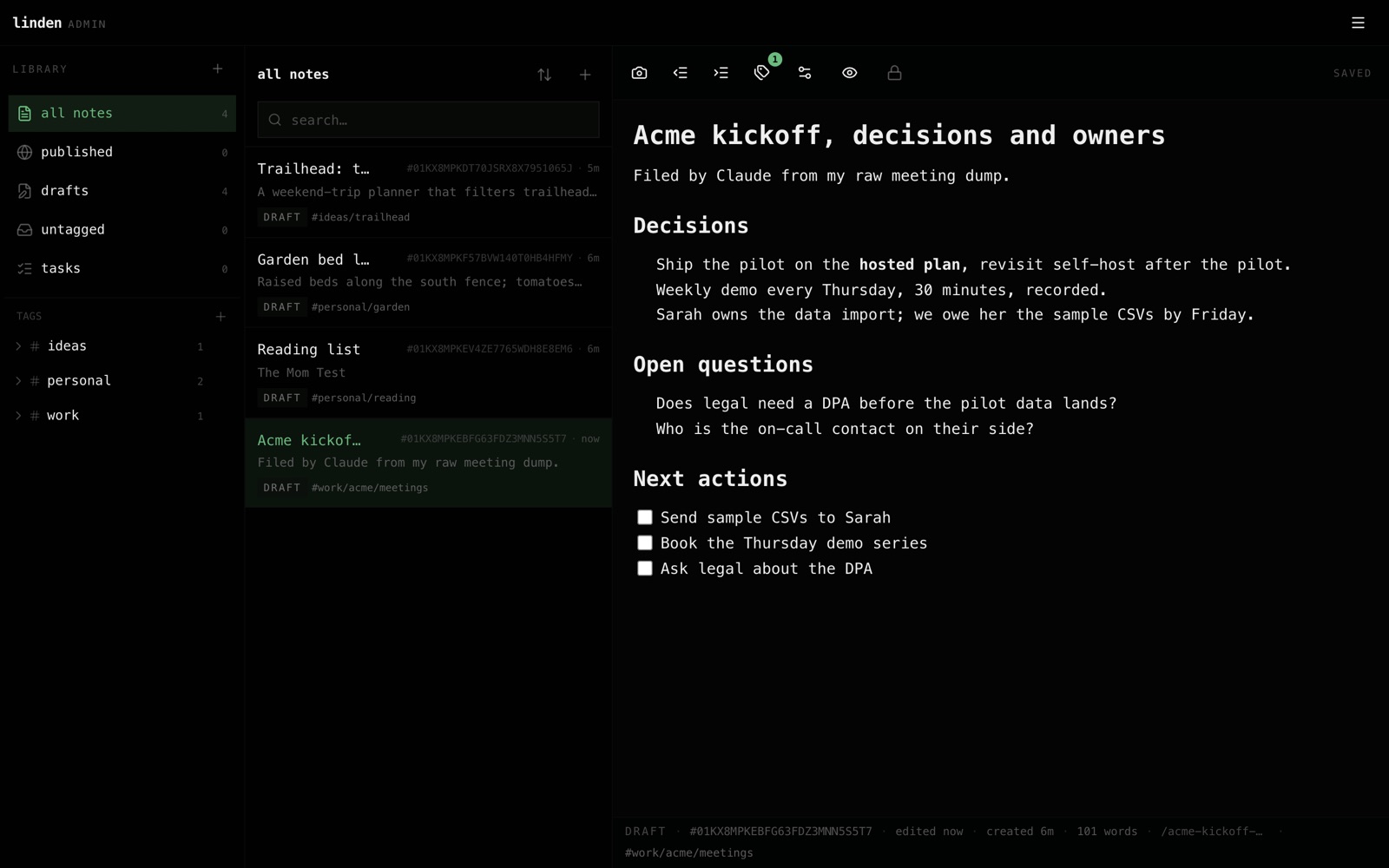
work/acme/meetings with decisions up top and actions as live checkboxes.Brainstorm a product with live mockups
The goal: go from an idea in prose to a clickable mockup without leaving the note.
- 1. Riff in prose. Open a note and describe the idea; keep a connected agent in the loop as you go.
- 2. Ask for the mockup. "Add an
embedto this note that mocks up the trip card UI." The agent writes a fencedembedblock; it can pull React, Vue, D3, or Tailwind from the trusted CDN list. - 3. It runs right there. The block renders as a live, interactive panel in the editor: click the buttons, drag the bar under it to resize, flip to the source with the corner toggle, and iterate by asking for changes.
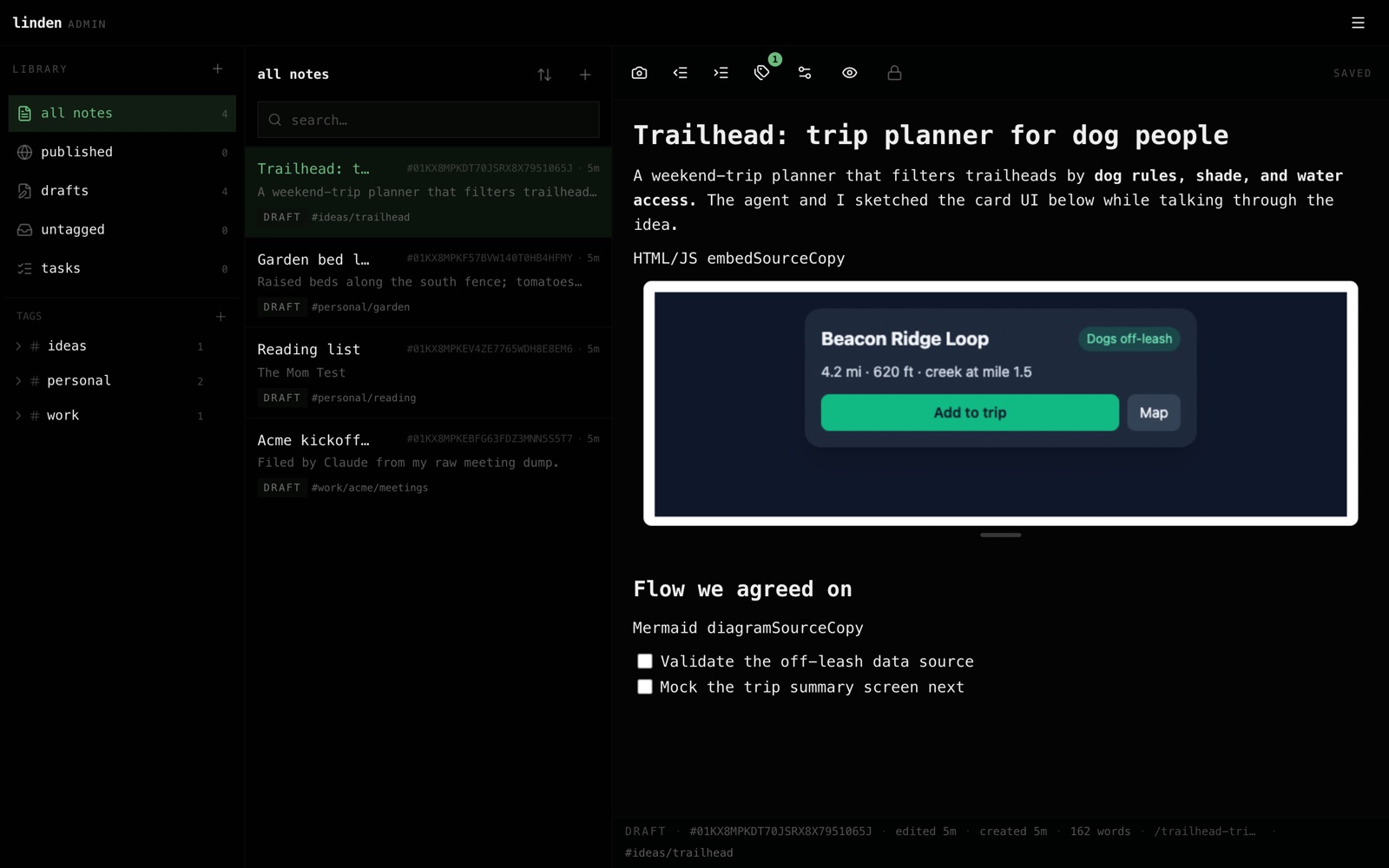
Set up continuous off-site backups
The goal: a self-hosted library that survives the machine it lives on, without a backup script to remember.
- 1. Create a bucket you control on Backblaze B2 or any S3-compatible storage, and an app key that can write to it.
- 2. Point the daemon at it. In the app, open Settings › Your data › Automated backup and paste the Key ID, application key, bucket, and path. That's the whole setup.
- 3. Forget about it. Changes stream to the bucket as you write (the database via embedded Litestream, attachments content-addressed). To move or rebuild a machine, install the daemon, enter the same keys, and it restores itself before it starts.
Linden Cloud
Linden Cloud is managed hosting on our infrastructure, for when you would rather not run your own server. You get the same app and the same library; we run the daemon behind it.
- What it is. We run your daemon on our hardware, keep it updated, and take care of the backups. It is the same linden.md you would self-host, without a machine to keep on and online.
- What you get. Your own
you.linden.mdaddress (with an optional custom domain), your private<key>@in.linden.mdinbox, and the AI keys for semantic search handled for you, so search by meaning works out of the box. - How to get it. Linden Cloud is invite-based for now. With a referral code, sign up at /signup: enter your code, pick your handle, and confirm your email with the code we send. Your account is ready in moments.
- Still yours. Export your whole library to Markdown any time, and move to self-hosting whenever you like (and back again). Your data is always yours; Linden Cloud is a convenience, not a lock-in.
How it works (under the hood)
Linden is local-first. Your library lives in one process, the daemon, and everything else (the apps, the public blog, your AI agents) talks to it. Here is the shape of the system.
The daemon and its database
The daemon keeps your whole library in a single SQLite database (data.db in ~/.linden), running in WAL mode with a single writer, so writes are serialized and consistent and reads never block them. Notes, tasks, tags, version history, attachment metadata, and your settings all live in that one file; attachment bytes live next to it as content-addressed blobs. Because it is a real database on disk, it is fast, transactional, and yours to copy or move at any time. Full-text search (FTS5) and vector search (embeddings) are indexes inside the same database, so recall works offline with no external service.
The tunnel (how your daemon is reachable)
Your daemon sits behind your home or office router, which normally means it cannot be reached from outside. Linden solves this without any port-forwarding or firewall setup: the daemon dials out to the gateway and holds the connection open. Requests for your library then travel back down that same outbound connection. Because the daemon only ever makes an outbound connection on port 443 (the same port your browser uses for HTTPS), it works from behind almost any network, and NAT traversal is automatic. The transport is NATS multiplexed over a secure WebSocket on 443, so a single connection carries every request and reply.
The gateway (a blind relay)
The gateway we run at linden.md is the public edge. It terminates public TLS, gives each account a stable address (you.linden.md), and matches an incoming request to the right daemon: it maps <account>.linden.md to that account's private message subject and hands the request to whichever daemon is currently connected for it. It is a blind relay: your content passes straight through and the gateway never reads it or stores it. To keep each relayed message small, a single request or reply is capped at about 8 MB; large downloads (a video, a full backup) are streamed through in ranged chunks under that cap, so size is never a limit, only latency. If your daemon is offline, the gateway simply has nothing to relay, and your apps keep working locally and sync when it returns.
Sync (real-time, offline-first)
Every write, from any surface (web, phone, an AI agent), appends to a single change feed inside the database, in the same transaction as the write itself. Connected apps hold open a Server-Sent Events stream (/sync/stream) and see each change within about half a second, so an edit on your laptop lands on your phone almost immediately. When a device is offline it keeps working against its local copy; on reconnect it asks for everything since its last cursor (/sync/changes?since=N), replays the gap, and resumes the live stream. Deletes are first-class in the feed, so removals propagate too.
Managed Cloud vs self-host
It is the same daemon binary either way. When you self-host, you run it and hold your own keys and backup configuration. On Linden Cloud we run that identical daemon on our hardware and inject the operational bits for you (backup credentials, the semantic-search API key) at run time, so they are never written into your library's database. That is why moving between Cloud and self-hosting is lossless in both directions: the database is the same shape, and the parts we manage were never part of your data to begin with.
Backup format
A full backup is a plain .zip with two things inside, and no proprietary format anywhere:
data.db: a consistent snapshot of your SQLite database, taken with SQLite'sVACUUM INTOso it is a clean, complete copy even while the daemon is running.blobs/<sha256>: every attachment, stored by the SHA-256 hash of its contents (content-addressed), so files are de-duplicated and verifiable.
It is ordinary, unencrypted SQLite. You can open data.db with any SQLite tool and read everything directly. Nothing is locked or obfuscated, which also means the backup file is your responsibility to store somewhere safe. (In transit, backups over the gateway and to your bucket are protected by TLS; the file at rest is not encrypted by Linden.)
Everything that gets stored
The backup is lossless: notes, tasks, your full tag tree, complete version history, attachment metadata, and the attachment bytes themselves. For the technically curious, here is every table in data.db:
| Table | What it stores |
|---|---|
notes | Every note (a task is a note with a status). Columns: id (ULID), title, slug, body_markdown, body_json (the editor's rich-text document), tags (JSON array of tag ids), metadata (JSON), published_at (set = public post), share_token, pinned, status (NULL = plain note; otherwise inbox/todo/doing/waiting/done/cancelled), due_at, reminder_at, priority, source_id (canonical URL/id a captured note came from, for dedup), created_at, updated_at, deleted_at. |
note_versions | The full linear version history: one snapshot per note write (with a 30-second same-source debounce). Holds a copy of the note's fields at that point (title, slug, body_markdown, body_json, tags, metadata, published_at, share_token) plus a version number and a source label (web, cli, mcp, sync, import, ...). Its auto-incrementing id is monotonic. |
tags | Your hierarchical tag tree as first-class rows. Columns: id (ULID, stable across rename/move), parent_id (adjacency list; NULL = root), name (one segment), path (cached full slash-path), sort_order, pinned (Canopy), color, icon, note_count, and timestamps. Renaming or moving a tag touches only tag rows, not your notes. |
note_tags | The note-to-tag membership projection (note_id, tag_id), maintained on every note write so tag queries are fast. |
changes | The unified change feed that drives sync. One row per mutation: seq (the monotonic sync cursor), entity and entity_id, op (upsert or delete), a source label, and created_at. |
assets | Attachment metadata (the bytes are in blobs/). Columns: id (ULID), note_id, kind (image/video/audio/file), sha256 (content key into blobs/), filename, content_type, size, duration_ms, poster_key (video poster), metadata, and timestamps. |
asset_text | Text extracted from attachments so files are searchable: asset_id, note_id, sha256, the extracted text, a status (pending/done/skipped/error), and the method (pdf text layer or image ocr). |
uploads | In-flight resumable upload sessions (so a large attachment upload survives a restart): id, filename, content_type, kind, expected size, bytes received, optional note_id, and timestamps. |
agent_tokens | Bearer credentials for your paired devices and AI agents. Only the SHA-256 of each token is stored (token_sha256), never the token itself, alongside a label, a scope (read / no-delete / write), a kind (device or agent), and created/last-used/revoked timestamps. |
oauth_clients | Registered OAuth clients for hosted agent connectors (Claude, ChatGPT, Grok, and any other OAuth-capable MCP client) that sign in over MCP-over-HTTP: client_id, allowed redirect_uris, client_name, created_at. |
site_config | A single row holding your public site's identity and per-account preferences: name, bio, avatar_url, socials, tagline, and pinned_tags (your Canopy). |
settings | Daemon-private key/value settings (for example, your semantic-search provider and API key). These stay on the daemon. |
note_embeddings | The vector index for semantic search: per-chunk embeddings (note_id, idx, the chunk text, the model, its dimension, and the vec as a float32 blob). |
note_embed_state | Which notes are embedded and at what model/time, so the background indexer only re-embeds what changed. |
notes_fts | The full-text search index (FTS5) over note titles and bodies, kept in sync automatically. |
How a restore works
Uploading a backup is the mirror of downloading one. The .zip is sent up in chunks (each staying under the relay cap), assembled on the daemon, and then validated before anything is touched: the daemon confirms the archive really contains an openable SQLite data.db. Only then does it stage the file and restart, applying the restore on the next boot, before the database is opened, so a live database file is never hot-swapped. If the staged file ever fails validation it is set aside and your existing data is left completely intact, so a bad or corrupt upload can never wipe good data.
Continuous off-site backup
Separately from on-demand backup files, the daemon can stream your library to a bucket you own (S3 or Backblaze B2) as you write, using Litestream embedded directly in the daemon (no extra process to run) for the database, plus a small content-addressed sync for the attachment blobs. On a fresh machine, pointing the daemon at the same bucket pulls your library down before it starts. See Automated backups.
Markdown export (the portable alternative)
If you want your library in the most portable form possible, export to plain Markdown instead. You get a .zip of one <slug>.md file per note, each with a YAML frontmatter header, and an attachments/<id>/<filename> folder with the referenced files. Links in each note body that point at an attachment are rewritten to the bundled relative path, so the export is self-contained and opens cleanly in Obsidian, Bear, or any Markdown tool.
---
id: 01J...              # stable note id
title: "Meeting notes"
tags: ["work/sales", "2026"]
created: 2026-01-04T09:12:00Z
updated: 2026-01-05T14:03:00Z
published: 2026-01-06T00:00:00Z   # only if it is a public post
status: todo                       # only if it is a task
due: 2026-01-10T00:00:00Z          # tasks with a due date
priority: 2                        # tasks with a non-zero priority
---

# Meeting notes
...body markdown...
Export and import round-trip: an export can be re-imported into Linden (or a fresh library), and import also reads a generic Markdown vault or a Bear export. A full backup keeps strictly more (version history, task and asset metadata, embeddings); Markdown export keeps the readable content and its structure in a form nothing can lock away.
On the roadmap
- Password-protected pages. Put a simple password on a published page, a share link, or a whole tag.
- Shared editing. Invite someone into a note and write together, with
@-mentions for the people you share with.